Custom Page Sizes for Microsoft Print to PDF
Posted by Craig H on 29 August 2015
I don’t usually post Windows tips and tricks, but I thought this might be useful as I haven’t seen it mentioned anywhere else. Briefly, the Windows 10 Print to PDF support doesn’t allow custom page sizes as it comes, but there is a simple way to enable it.
I’ve been setting up a new office PC with Windows 10 (while checking out the security and privacy settings, which have been well covered elsewhere). I use PDF a lot, for delivering clean versions of reports to clients and distributing presentation notes, so I was pleased to see Microsoft have built PDF creation in to Windows 10. It would be good if I didn’t need to install Acrobat any more, as it’s expensive, uses a lot of disk space, and is one more thing you have to keep up to date with security patches. However, one thing we currently use PDF for is preparing electronic payslips, for which we use a custom, small page size, and this wasn’t working with the Microsoft implementation.
It turns out that Windows printer drivers need to explicitly specify that they will support custom page sizes, and for some reason Microsoft Print to PDF doesn’t do that. Being an incurable tinkerer, I thought I’d try modifying it and see if it worked.
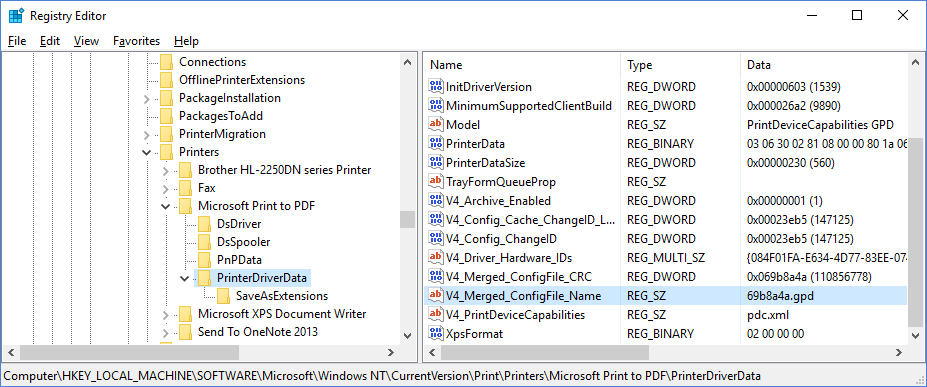
First you need to find the GPD file for the driver, which is installed under C:\Windows\System32\spool\V4Dirs. I was able to find the folder and file names by using regedit and looking in the registry key HKEY_LOCAL_MACHINE\SOFTWARE\ Microsoft\Windows NT\ CurrentVersion\Print\Printers\ Microsoft Print to PDF\PrinterDriverData. On my system it is {084F01FA‑E634‑4D77‑83EE‑074817C03581}\74e1846.gpd; you will probably find you have the same file name but a different folder name.
Now, make a backup copy of the GPD file, so you can restore it if you fumble the editing. Then you need to edit the original file and add the following section, immediately after the line *DefaultOption: LETTER :
*Option: CUSTOMSIZE

{

*rcNameID: =USER_DEFINED_SIZE_DISPLAY

*MinSize: PAIR(936000, 1332000)

*MaxSize: PAIR(5346000, 7560000)

*MaxPrintableWidth: 5346000

}
The values for MaxSize are copied from the largest page size already defined (A3) and the values for MinSize are scaled down proportionately from that to represent A8 size. Save the new file somewhere, then copy it over the top of the original file.
Now you can define a custom page size in the normal way: go to Devices and Printers in the control panel, select the printer Microsoft Print to PDF, click Print Server properties on the ribbon menu, tick Create a new form, give it a name and enter the dimensions you want, then click Save Form. Now when you print something, select Microsoft Print to PDF as the printer, click Preferences, then Advanced and you should see your new page size in the pulldown menu.
This seems to be producing correct output for me, so the puzzle is why Microsoft didn’t do this themselves. Perhaps they didn’t want to go through the extra testing for arbitrary page sizes, or maybe they did test it and saw problems with some specific page sizes, I don’t know. If this would be useful for you, please give it a go and let us know how it worked out for you in the comments!
 Franklin Heath Ltd
Craig H said
Just to note: the recent Windows 10 Version 1511 cumulative update included a new GPD file for this driver with a different file name, but repeating the process described above gets the custom page sizes working again.
David F said
Thank you so much. I make my living as a music engraver, editor, printer. MSPDF would work for European publishing houses but here we need 9×12, 9.5×12.6666 (don’t ask), 10×13, and more. Of course, for 12×16 I needed to alter your MaxPrintSize and MaxPrintableWidth, but you showed the way. I’m with you; I see no reason for MS to have left this out of the code.
Robert Herman (@rhrmn) said
Would you please consider adding some screenshots of this process? I have followed your instructions on Windows 10 Pro version 1511 and unfortunately have not been able to get the page size pull-down menu to display my custom form size of 11×17.
Craig H said
I think 11×17 is just very slightly too big for the “MaxSize” parameters. Noting that I used A3 as the measure for my MaxSize, which is roughly 11.7 x 16.5 inches, you should probably increase the second number in the MaxSize pair to allow for the 17 inch height. Try:
*Option: CUSTOMSIZE
{
*rcNameID: =USER_DEFINED_SIZE_DISPLAY
*MinSize: PAIR(936000, 1332000)
*MaxSize: PAIR(5346000, 7780000)
*MaxPrintableWidth: 5346000
}
The units for MaxSize work out at 18000 per mm (457200 per inch) so you could experiment with even bigger sizes, do please let me know if that works for you!
Alex said
Thanks a lot Craig. Worked like a charm! I need to print in SRA3 size and that is not available by default. I was experiencing issues trying to install Acrobat 8 in a Windows 10 laptop just to get this size on a PDF printer, and now I don’t have to install it anymore. You helped me solve a big problem. I owe you a beer!
williamjehle said
Thank you Craig! I usually have success with CutePDF, but I had issues printing a long document in 8.5″x8.5″ format. Your tweaks did the trick. I did have two copies of 74e1846.gpd, and I had to edit both of them. When I just edited the first one, it showed the new page size but I could not select it. Well done mate!
Mike Shawaluk said
Just a quick note: there shouldn’t be a need to add 11″ x 17″ as a custom size, since that is already present as “Tabloid”.
That said, thank you very much for publishing this information. I have been trying to create 7.5″ x 12″ PDFs, which will scale to fill the full display on a 16:10 tablet device.
kbellis said
Hello, Craig. Thank you for this narrative. Top marks for your tinker! It’s a pity Microsoft hasn’t satisfactorily addressed this issue.
“The values for MaxSize are copied from the largest page size already defined (A3) and the values for MinSize are scaled down proportionately from that to represent A8 size.”
FYI & FWIW – ARCH D as a maximum
*Option: CUSTOMSIZE
{
*rcNameID: =USER_DEFINED_SIZE_DISPLAY
*MinSize: PAIR(936000, 1332000)
*MaxSize: PAIR(109728000, 164592000)
*MaxPrintableWidth: 109728000
}
On a related MS PDF niggle; when prompted to save the PDF file, the default name ideally should echo the name of the file being printed appended with the pdf suffix. Instead, the default is blank. When dealing with lengthy arcane file names, this becomes tiresome. Has this been addressed by another one of your in-depth examinations?
Rick said
Why not use the largest and smallest per the ISO216 international paper standard.
The largest, B0 is 1000mm x 1414mm or 39.4in x 55.7in
The smallest, A10 is 26mm x 37mm or 1.2in x 1.7in
Which would be
*MinSize: PAIR(468000,666000)
*MaxSize: PAIR(18000000, 25452000)
MaxPrintableWidth: 25452000
This would give the capability to cover all available paper sizes, and any weird custom ones in between.
Mike said
Arch E1 maximum landscape & portrait orientation:
*Option: CUSTOMSIZE
{
*rcNameID: =USER_DEFINED_SIZE_DISPLAY
*MinSize: PAIR(936000, 1332000)
*MaxSize: PAIR(192024000, 192024000)
*MaxPrintableWidth: 192024000
}
Margaux said
Screenshots please
Craig H said
I’m sorry I don’t have time to do that at the moment; if you would care to follow the instructions and make screenshots of the process, I will be happy to add them here for the benefit of others. Thanks!
Kent Slaughter said
https://answers.microsoft.com/en-us/windows/forum/windows_10-hardware/microsoft-print-to-pdf-custom-paper-sizes-possible/90ed3d48-1ece-4ca5-8d3b-ff0af24a7b37?auth=1
Kent Slaughter said
(screenshots here)
Charlotte Nash-Stewart said
Fantastic solution. Thanks. I had to reboot before the new page settings took effect. Otherwise, this worked flawlessly.
Simon said
I have had absolutely no luck at all. I went through as explained, but nothing turns up in the scroll down menu. I’ve tried rebooting and everything else, I started from scratch again with the back-up file, but still absolutely nothing happens.
I used the explained code, inserted it after the line *DefaultOption: LETTER :
I went to printer server settings made a new setting called e-book.
But I never get the option to choose anything in the advanced settings in the scroll down menu when printing. Anybody has a clue to fix this.
Got Windows 10, Home Edition. MS Word 2010.
John Domogalla said
I was trying to expose the ISO A0 size so I could have a single page in the pdf file.
The units for MaxSize work out at 18000 per mm (457200 per inch) so I fiqured out the inches x inches needed for printing the application data at 1/4 scale which was 100ft wide and 150ft tall then multiply by scale of 1/4 ( 100ft scales to 25 inches ) and 25 inches * 457200 = 15137892
—-
*Option: CUSTOMSIZE
{
*rcNameID: =USER_DEFINED_SIZE_DISPLAY
*MinSize: PAIR(936000, 1332000)
*MaxSize: PAIR(15137892, 21396960)
*MaxPrintableWidth: 15137892
}
then the custom frame creation worked.
Leandro M said
Hi John,
I have been trying to add A0 and A1 sizes as well but I couldn’t manage to do so. I’ve just read your explanation but I am struggling to understand it. Actually, in my case the string is a little bit different:
*Option: A1
{
*rcNameID: =RCID_DMPAPER_SYSTEM_NAME
*PrintSchemaKeywordMap: “ISOA1”
*PrintableOrigin: PAIR(0, 0)
*PrintableArea: PAIR(10692000, 15138000)
}
To find the pairs I multiplied 59,4cm/84,1 by 180,000, as I notice from the already inserted format ones:
*Option: A4
{
*rcNameID: =RCID_DMPAPER_SYSTEM_NAME
*PrintSchemaKeywordMap: “ISOA4”
*PrintableOrigin: PAIR(0, 0)
*PrintableArea: PAIR(3780000, 5346000)
}
3780000/180,000= 21cm
5346000/180,000= 29,7cm
—
I also made the changes in the pdc.xml file:
0,0,594000,841000
841000
594000
Here I also followed the example already set:
0,0,210000,297000
297000
210000
In this case I just multiplied the mm value by 1000. However, I still could not manage to add the A1 option…
I found an example to add the A6 size, and it works smootly:
*Option: A6
{
*rcNameID: =RCID_DMPAPER_SYSTEM_NAME
*PrintSchemaKeywordMap: “ISOA6”
*PrintableOrigin: PAIR(0, 0)
*PrintableArea: PAIR(1890000, 2664000)
}
and
0,0,105000,148000
148000
105000
Maybe there’s something I’m missing?
Can you or anyone help me???
Thanks in advance!
Osama said
Thank so much it works great in latest Windows 10 Anniversary Update.
mike Bellemans said
Interesting article.
I still have the problem that my PDF files are 5x bigger since the new PDF printerr of Windows.
Before we used the Amyuni 450 driver that comes with our ERP software.
Now on Windows X the ERP uses the standard windows PDF printer and explodes all my files.
I did some testing and i figured ou this is because the Amyuni driver uses “FONT EMBEDDING” when making pdf files.
Do you konw if it possible to enable this feature through the uses of registry hacks?
Kind regards.
john fisher said
Hello, I’d love to try this but I don’t see “print server properties”, only “printer properties” so I can’t make a new form. Am I missing something? Thank You
Craig H said
Hi John! I think you must be looking at the right-click menu, which is where you find “Printer properties”. Instead you should left-click “Microsoft Print to PDF” and then “Print server properties” appears as an option at the top of the control panel window, in between “See what’s printing” and “Remove device”.
Jo Smith said
I’m also trying this, as I publish paperbacks and need PDFs to be the trade page sizes.
Like John Fisher, I can’t see an option for “print server properties” on left-clicking “Microsoft Print to PDFs” – only the three options “Printer” “Document” and “View”.
The file I changed was called ‘merged.gpd’ – was this perhaps the wrong file?
Craig H said
I’m talking about the ribbon bar menu at the top of the “Devices and Printers” window, it appears after one left click, see this picture. You must have been double left clicking and looking at the “Microsoft Print to PDF” window.
Jo Smith said
OK, got that now. Set up a new paper size, but even after restarting it doesn’t show as an option in Word. Maybe I edited the wrong driver at the start 😦
Craig H said
Did you look in the registry key for the filename, as it says in the article?
Jo Smith said
I’m grateful to you all for the idea, and glad it works for you. I’m always nervous about messing with parts of the system I don’t understand, and as I have a critical job to do right now I shan’t be tempting providence by changing anything until it’s done. I have a work-around anyway, by firing up my old computer with Windows XP (what’s not to like?) and using Word 2000 and Cute PDF Writer as I did before. But as Arnie says, I’ll be back!
Inare said
I tried doing this but I don’t really have any experience in this. I tried editing the GPD file by opening it in notepad. However there isn’t a “DefaultOption” line. There is however “Option: LETTER”. I’m very confused at this point of what I’m doing.
Craig H said
All of the .gpd files on my Windows 10 system have the “*DefaultOption: LETTER” line, it’s after a line that says “*rcNameID: =PAPER_SIZE_DISPLAY”. Still, if you’re not confident doing this, I would recommend leaving well alone; if you edit the wrong .gpd file or put the new option in the wrong place, you could easily mess it up, sorry!
Ameya said
That was superbly done… Thanks a lot.. Needed a custom 8×10 page size! Got it..
Is it possible to change the resolution the same way to give best print output on a remote computer where I send the PDF?
Shah said
Hi,
This doesn’t seem to be working in build 1703. Anyone confirm if it works in version 1703?
Ameya said
It works.. In 1703 and also in latest 1709.
I am using regularly without any hiccups at all.
David M Hunt said
As expected, Word now provides paper type “Custom” when using print to PDF. Adobe Reader does not. It’s options remain only the handful of restricted sizes. Have you encountered this?
George Ercus said
Thank you very much. It worked.
ProBR said
Thank you very much.
I do not understand why Microsoft has not fixed this issue yet since so many of us have been asking for a solution. One that is very simple, I may add.
Well… simple once you know what to do. I did not know until I found this page.
Thank you again.
For those of you using a new Windows 10 … the path for mine was at:
C:\Windows\System32\spool\V4Dirs\A045D61A-BE69-49BE-B57F-C62480ACEC70
The file name to modify is called (in my computer): 69b8a4a.gpd
It is working for me right now after I created a custom form with the size I wanted. Even though the size I wanted is a common ARCH D … which should be already available there … but it wasn’t. So. I created a custom size and called it ARCH D1 and now it shows in the drop down manu from Microsoft Print to PDF driver dialog box.
What I do not know if for how long will this work since I am afraid that a future update of drivers from Microsoft could replace the file I just created with a new file that will not have the changes that we just implemented.
Well … let’s see.
Hope this help the new guys looking for a solution to this problem.
Farhan Muntaqo said
Thanks Craig, it really works on my Win 10, it’s now free for me to add my custom sizes. I was just wondering why Microsoft didn’t make this feature as a default option unless users enabling it anyway. Great job Craig…
hisato said
Do you change the word CUSOMSIZE next to *Option? Also what about USER_DEFINED_SIZE_DISPLAY? I’d like to add the size 4×6, which is one of the default sizes, so I did not have to “Create a new form.” Please advise.
Craig H said
I’ve only tried adding CUSTOMSIZE as a new section, not changing or defining any other ones, so I don’t know if that would work. Do please let us know if you figure it out!
Fleming said
Hi,
The MS Windows updates downloaded automatically on Septemebr 30, 2019. Now I’m unable to use Custom Size again in MS Word to access Print via PDF with Custom Size. I had it working perfectly with see 9 X 6, 9.25 x 12.45 and 13.25 X 9.25. But when I try to view after Printing, I get an error message or the view is cut off.
I tried unchecking (OFF) and checking (ON) the box for Microsoft Print to PDF in MS Windows 10 too. But that didn’t work either. I even added a NEW FORM NAME with its affiliated sizes to the MIcrosoft Print to PDF. But when I go to Microsoft Print to PDF Advanced settings, the the New Form name doesn’t appear available there. So, I’m at a loss as to what to do. This has been working for two years; and I need custom sizes for the printing of my books and their covers. Any suggestions?
Would a program like pdfelement resolve this? Any and all help would be most appreciated. Thanks much.
husain Alumran said
Hi ,
It is super to find a good solution for the customization of a printing page , and it save me alot of time intagling here and there
Thanks alot // (grazie=italy) (aregato=japan) (tak=nordic) from all the ones i know off for that code
Erwin said
Does it work in Windows 10 Update 1903 64-Bit? It’s not working on mine
Craig H said
It’s still working for me, but I haven’t updated to 1903 yet. A few previous Windows updates have wiped out custom page size sizes so that you have to go through the whole process again to recreate them – is that what happened for you?
orudge said
I tested an upgrade from 1809 to 1903 and Windows did preserve the .gpd file, but applications failed to print using a custom size. Restoring the original gpd and reapplying seemed to make no difference. I’ll try with a fresh install of 1903 and apply the change and see if that works, but it may be MS have changed something that means the patch above no longer works. 😦
Craig H said
It’s still working for me in Excel 2013 on Windows 10 Home version 1903.
Josef Villanueva said
I’m currently on Windows 10 1809..I tried the method but it does not work for me. Is anyone else having this problem?
SuiteFiles said
This is also useful if you’re trying to reduce the DPI it prints at, so it makes smaller files
Pauline said
It works perfectly! I was looking for a PDF printer that is able to convert Word files to PDF files while keeping images in very high quality. Microsoft Print to PDF was appropriate, but I needed a customized size. Thank you for your explanations.
Joel Egelhoff said
Looks great! One question, if done on a company network, would these changes need to be made on every computer that would need to produce the custom-sized PDFs or would this affect all workstations?
Craig H said
Glad you like it! Unfortunately, as far as I know, you need to go through this process individually for each workstation. If all the workstations are running the same Windows version, there’s a good chance that the GPD folder and file names will be the same for each, so that might save you a bit of time. Good luck!
Bildin said
Thanks for solution! To apply modification on an amount of computers I have written the bat-patcher:
@echo off
setlocal enabledelayedexpansion
set mDir=C:\Windows\System32\spool\V4Dirs
for /f “tokens=3” %%a in (‘reg query “HKEY_LOCAL_MACHINE\SOFTWARE\Microsoft\Windows NT\CurrentVersion\Print\Printers\Microsoft Print to PDF” /v PrintQueueV4DriverDirectory’) do set mPath=%%a
for /f “tokens=3” %%a in (‘reg query “HKEY_LOCAL_MACHINE\SOFTWARE\Microsoft\Windows NT\CurrentVersion\Print\Printers\Microsoft Print to PDF\PrinterDriverData” /v V4_Merged_ConfigFile_Name’) do set mFile=%%a
echo.Reading %mDir%\%mPath%\%mFile%
set status=0
for /f “tokens=1,2* delims=:” %%a in (‘findstr /n /r “.*” “%mDir%\%mPath%\%mFile%”‘) do (
if !status! EQU 0 (
if “%%b” EQU “*Feature” (
if “%%c” EQU ” PaperSize” (
set status=1
)
)
)
if !status! EQU 1 (
if “%%b” EQU “*Option” (
if “%%c” EQU ” CUSTOMSIZE” (
echo Already patched!
set status=2
) else (
echo *Option: CUSTOMSIZE>>mod.tmp
echo {>>mod.tmp
echo *rcNameID: =USER_DEFINED_SIZE_DISPLAY>>mod.tmp
echo *MinSize: PAIR(180000, 180000^)>>mod.tmp
echo *MaxSize: PAIR(15138000, 21402000^)>>mod.tmp
echo *MaxPrintableWidth: 21402000>>mod.tmp
echo }>>mod.tmp
echo Patch applied!
set status=3
)
)
)
if “%%c” EQU “” (
set line=%%b
) else (
set line=%%b:%%c
)
echo.!line!>>mod.tmp
)
if !status! EQU 3 (
if not exist %mDir%\%mPath%\%mFile%.bak (
copy %mDir%\%mPath%\%mFile% %mDir%\%mPath%\%mFile%.bak
copy mod.tmp %mDir%\%mPath%\%mFile%
) else (
echo Cannot patch – %mDir%\%mPath%\%mFile%.bak already exist!
)
)
erase mod.tmp
pause
REM reg add HKEY_LOCAL_MACHINE\SYSTEM\CurrentControlSet\Control\Print\Forms /v _4A0 /t REG_BINARY /d 50AA19001049240000000000000000001049240050AA19000100000000000000
REM reg add HKEY_LOCAL_MACHINE\SYSTEM\CurrentControlSet\Control\Print\Forms /v _2A0 /t REG_BINARY /d 8824120050AA190000000000000000008824120050AA19000100000000000000
REM reg add HKEY_LOCAL_MACHINE\SYSTEM\CurrentControlSet\Control\Print\Forms /v _A0 /t REG_BINARY /d 28D50C0088241200000000000000000028D50C00882412000100000000000000
REM reg add HKEY_LOCAL_MACHINE\SYSTEM\CurrentControlSet\Control\Print\Forms /v _A1 /t REG_BINARY /d 5010090028D50C0000000000000000005010090028D50C000100000000000000
REM reg add HKEY_LOCAL_MACHINE\SYSTEM\CurrentControlSet\Control\Print\Forms /v _A2 /t REG_BINARY /d A0680600501009000000000000000000A0680600501009000100000000000000
REM reg add HKEY_LOCAL_MACHINE\SYSTEM\CurrentControlSet\Control\Print\Forms /v _A3 /t REG_BINARY /d 28880400A0680600000000000000000028880400A06806000100000000000000
REM reg add HKEY_LOCAL_MACHINE\SYSTEM\CurrentControlSet\Control\Print\Forms /v _A4 /t REG_BINARY /d 5034030028880400000000000000000050340300288804000100000000000000
REM reg add HKEY_LOCAL_MACHINE\SYSTEM\CurrentControlSet\Control\Print\Forms /v _A5 /t REG_BINARY /d 2042020050340300000000000000000020420200503403000100000000000000
REM reg add HKEY_LOCAL_MACHINE\SYSTEM\CurrentControlSet\Control\Print\Forms /v _A6 /t REG_BINARY /d 289A0100204202000000000000000000289A0100204202000100000000000000
REM reg add HKEY_LOCAL_MACHINE\SYSTEM\CurrentControlSet\Control\Print\Forms /v _A7 /t REG_BINARY /d 10210100289A0100000000000000000010210100289A01000100000000000000
REM reg add HKEY_LOCAL_MACHINE\SYSTEM\CurrentControlSet\Control\Print\Forms /v _A8 /t REG_BINARY /d 20CB000010210100000000000000000020CB0000102101000100000000000000
REM reg add HKEY_LOCAL_MACHINE\SYSTEM\CurrentControlSet\Control\Print\Forms /v _A9 /t REG_BINARY /d 8890000020CB000000000000000000008890000020CB00000100000000000000
REM reg add HKEY_LOCAL_MACHINE\SYSTEM\CurrentControlSet\Control\Print\Forms /v _A10 /t REG_BINARY /d 9065000088900000000000000000000090650000889000000100000000000000
Also I have tried to create print forms from 4A0 to A10 in registry as it makes system settings for print server, but they don’t apply. So I left them commented.
Can anyone suggest a way to add print forms automatically?
Anonymous said
This saved my life! Thanks so much!
bilal anwer said
tested and worked perfectly. anybody who wants to add A1. use following.
*Option: CUSTOMSIZE
{
*rcNameID: =USER_DEFINED_SIZE_DISPLAY
*MinSize: PAIR(936000, 1332000)
*MaxSize: PAIR(10698480, 15133320)
*MaxPrintableWidth: 10698480
}
Hazen said
i want to add F4, can u help me?
Joe said
Somehow, does not work for me 😦
What values to use for A2 paper size in Microsoft gpd file? ~ Photography ~ AnswertoWorld.com said
[…] this Franklin Heath article and this one at Microsoft […]
markonitogenMarko said
Hello everybody! I have a question too (make it three :).
Is it possible to program the GPD file to enable the following features:
1. Force a “Microsoft Print to PDF” printer to use the same filename as the document being printed.
2. Predefine the path where the PDF documents are saved, without having to manually point the “Save to” location everytime.
3. Automatically open the PDF file after creation.
Thanks!
markonitogen said
Hello everybody! I have a question too.
Is it possible to program the GPD file to enable the following features:
1. Force a “Microsoft Print to PDF” printer to use the same filename as the document being printed.
2. Predefine the path where the PDF documents are saved, without having to manually point the “Save to” location everytime.
3. Automatically open the PDF file after creation.
Thanks!
Billy B said
Tried in Windows Build 19043 and I can’t print when the file is modified, has anyone else been able to get it to work?
ᐉ Microsoft Print To PDF - Formats De Papier Personnalisés Possibles ? ≫ Devices & Drivers | UDIL said
[…] J’ai compris comment ajouter le format de papier “A6” et je pense que ce qui suit fonctionnera pour toutes les dimensions personnalisées. Avant de commencer, un mot de remerciement à Craig H pour son article qui m’a fait avancer dans la bonne direction : Tailles de page personnalisées pour Microsoft Print to PDF. […]
Microsoft Print to PDF in Custom Page Sizes (Tutorial) – The Writing Forge said
[…] The following excerpt is taken from: https://franklinheath.co.uk/2015/08/29/custom-page-sizes-for-microsoft-print-to-pdf/ […]
Emi Nava said
Did all of the steps, but for some reason the created custom custom page sizes only become available on the Microsoft XPS Document Writer instead of Microsoft Print to PDF, which is still restricted to the few default options offered. I don’t understand why this happens.
Donald Bedwell said
I just found this solution, followed your instructions and it WORKED LIKE A CHARM! Thank you for researching and sharing this solution.
Jared said
Followed this to the letter as far as I can tell, and it seems to have killed the Microsoft print to PDF option, giving me an error and reverting back to the last selected valid printer option.
Max said
Make sure you copy the text word for word (obviously you can edit the maxsize values). I had the same issue at first but then I went back and realized that I had typed CUSTOMIZE instead of CUSTOMSIZE. After that it worked like a charm. I’m on Windows 10 Home 21H1 build 19043.2130 for reference.
Max said
Also, check that your gpd file is named correctly. I just tried to repeat this on my laptop with Windows 11 and it didn’t work at first because for some reason Windows decided to save my gpd file as 69b8a4a.gpd.txt after I edited it. Once I removed the .txt it worked.
JP said
I thought this method didn’t work for Windows 10 Pro 21H2, build 19044.1826, but it does. I had given up and downloaded CutePDF Writer, an excellent freeware tool. CutePDF Writer let me choose the new custom size I added (called “16:9 HD”) via Windows 10 “Print Server Properties” described above. That was progress, since Microsoft Print to PDF didn’t even let me see it. CutePDF Writer lets you choose any paper size available to the system, as defined in Print Server Properties. That’s of course the rational way to do it since a PDF is digital, anyway.
HOWEVER, the resulting preview was rotated 90 degrees, with the slide set to print in the middle, with huge white borders above and below. That was the clue I needed. A detail not described by the venerable Craig H is that you should enter page dimensions into Windows as if the paper is in portrait orientation, with the smaller number indicating width and the larger one indicating height. I went back and reversed the two dimensions for “16:9 HD” in “Print Server Properties” and voila, it worked! The correct setting for me was width = 19.05 cm and height = 33.87 cm. CutePDF Writer then showed the preview correctly. Microsoft Print to PDF also allowed me to chose the new custom size from its Advanced drop-down menu and it printed like I wanted.
I think Microsoft’s built-in tool does a size check which could make it seem like the new size is invisible to it, but really it just means Microsoft Print to PDF has determined it knows more than the user. So Craig’s trick works with this build of Windows 10. Just be careful to follow the steps exactly and make sure the document you want to print is set within its application to physically fit on the custom paper size you create, even though nothing may ever touch real paper and it shouldn’t matter.
Linda said
Second this. I was about to lose my mind trying to add 16:9 Onscreen option (25.4cm x 14.288cm) since only Microsoft Print to PDF (Windows 11) makes the file’s font displaying correctly. I added the lines as below:
*Option: CUSTOMSIZE
{
*rcNameID: =USER_DEFINED_SIZE_DISPLAY
*MinSize: PAIR(936000, 1332000)
*MaxSize: PAIR(2571840, 4572000)
*MaxPrintableWidth: 2571840
}
Installed CutePDF and did everything as JP said and it’s finally working!!!!
PDF Printer Settings – MODE | architecture said
[…] https://franklinheath.co.uk/2015/08/29/custom-page-sizes-for-microsoft-print-to-pdf/ […]
Bob Jenkins said
Worked on latest Windows 11 as of today. Thank you!
Arjun said
Hello, please let me know how and where to send the beer I owe you – incredibly helpful guide that I desperately needed! Thank you!
Emilia said
This is still working great. Needed the Arch D sized.
I had originally not understood that I needed to save a new form in Control Panel “Print server properties” Tab for the “Microsoft Print to PDF” printer after I edited the .gpd file. After I saved a the “new form” size, the Arch D1 size showed up in the pull down page sizes.
Below was copied from a comment above.
FYI & FWIW – ARCH D as a maximum
*Option: CUSTOMSIZE
{
*rcNameID: =USER_DEFINED_SIZE_DISPLAY
*MinSize: PAIR(936000, 1332000)
*MaxSize: PAIR(109728000, 164592000)
*MaxPrintableWidth: 109728000
}
Sergii B said
Thank you SO SO much!!! It is working in Win 11 Home now. I tried first variant, but it did not worked. I think problem was in last two rows – with bigger numbers it works.
Ruunerwold said
Unfortunate I couldn’t get it to work. Does somebody know what I did wrong? see https://imgur.com/a/ZC2YadL
Rogelio said
Make sure that when you are at the Printer server screen, the width and height are properly formatted like: 36.00in
Aby said
This method still works on Win 11. I add ARCH D paper size successfully. Just follow the below steps:
1. Use regedit to find your GPD file name
2. Edit it using a notepad. Notepad will save it as xxxxx.gpd.txt . Rename the file and remove .txt extension.
3. Goto Control Panel –> Select Microsoft PDF printer –> Go to Printer Server Screen –> Create a new form and enter the paper size.
4. Reboot your computer (not really required, but still good)
5. Select paper size from any application that you are using.
LCC said
MEGA MEGA MEGA THANKS!!!! (Windows 10 user)
hayura said
i could print to pdf with the size i want which is 89 x 300 cm but why when i opened the pdf file its image only show half of it
yudha said
how you do the calculation for min size and max size?
i want to make custom size 8.58 in x 7.99 in
Alfonso Mendoza said
This was exceptionally helpful to print to pdf’s with ease in excel and other Microsoft applications. Thanks Franklin! Took me a while to find this thread.